
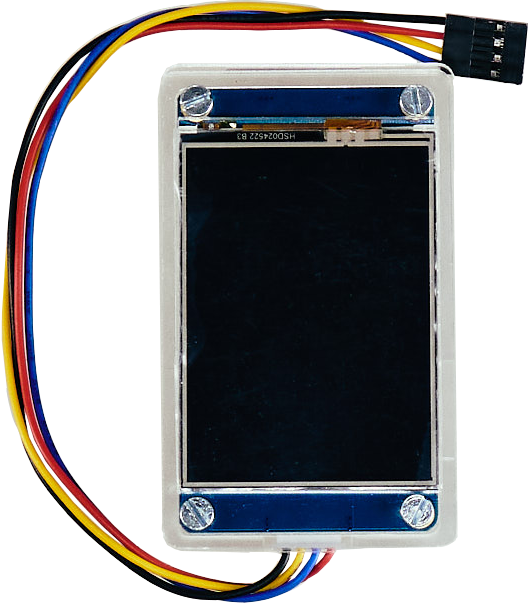
TECHNICAL SPECIFICATIONS
- Diagonal: 2.4 inches.
- Resolution: 320 × 240.
- Technology: TFT.
- Physical dimensions: 80 × 48 mm.
- Connection interface: UART.
- Supply voltage: 5 V.
- Resistive touchscreen.
- microSD card slot.
- Weight: 54 g.
Description
The display can show graphical information, including text and images, and can draw shapes. It is based on the Nextion HMI solution, has a resolution of 320 × 240 pixels, communicates over UART, and features a resistive touchscreen.
The libraries and visual blocks included with Robotrack software support basic operations such as drawing geometric shapes, displaying text, and enabling touchscreen drawing. To display images and create a graphical user interface with buttons, sliders, or input fields, use the ITEAD Studio library and software.
Use
Connection
The display uses a 4-pin UART connector and can be connected to either UART port on the Trackduino controller.
Connect the display to the board using the included 4-wire bus:
| Wire color | UART pin on the board |
|---|---|
| Black | GND |
| Red | 5V |
| Yellow | TX |
| Blue | RX |
Programming
All display blocks are in the Display block group.
To use the display, include the Display.h library and create a Display object with the UART interface connected to the display as an argument. In the visual environment, use the Connect display block in the Setup section.
By default, the library communicates with the display at 115200 baud. Do not manually set the UART interface used by the display to a different speed.
The display does not currently support Russian characters.
When working in text mode, the following color keywords can be used with display functions that accept a color argument:
| Keyword | Color | Value |
|---|---|---|
| BLACK | Black | 0 |
| WHITE | White | 1 |
| RED | Red | 2 |
| GREEN | Green | 3 |
| BLUE | Blue | 4 |
| BROWN | Brown | 5 |
| YELLOW | Yellow | 6 |
| GREY | Grey | 7 |
| Block and generated function | Description |
|---|---|
 #include <Display.h>Display display(int uartPort); | Includes the display library, creates an object named display, and clears the screen.Argument: UART (int uartPort) — UART interface connected to the display: UART1 or UART2. |
 display.clear() | Clears the display by filling it with black. |
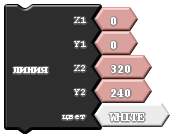 display.line(int x1, int y1, int x2, int y2, int color); | Draws a 1-pixel-wide line in the specified color between points [x1, y1] and [x2, y2]. Arguments: x1, y1 — start coordinates; x2, y2 — end coordinates; color — line color. |
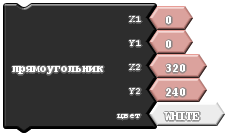 display.rectangle(int x1, int y1, int x2, int y2, int color); | Draws an unfilled rectangle with a 1-pixel border. [x1, y1] and [x2, y2] are opposite corners. Arguments: x1, y1, x2, y2 — corner coordinates; color — border color. |
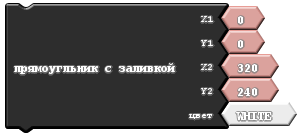 display.fill(int x1, int y1, int x2, int y2, int color); | Fills a rectangular area with the specified color. [x1, y1] and [x2, y2] are opposite corners. Arguments: x1, y1, x2, y2 — corner coordinates; color — fill color. |
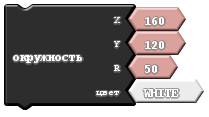 display.circle(int x, int y, int R, int color); | Draws an unfilled, 1-pixel-wide circle with radius R and center [x, y]. Arguments: x, y — center coordinates; R — radius; color — circle color. |
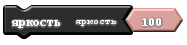 display.brightness(int brightness); | Sets backlight brightness from 0% to 100%. The setting is retained until the display is restarted; after restart, brightness returns to 100%. Argument: brightness (int brightness) — backlight level from 0 to 100. |
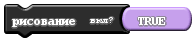 display.enableDrawing() / display.disableDrawing() | Enables or disables drawing mode. Drawing starts when the touchscreen is touched. The default mark is red unless another brush color is set with the Brush color block. Mode ( bool mode): true enables drawing; false disables it. |
 display.drawingColor(int color) | Sets the brush color for drawing mode. Argument: color (int color) — brush color. |
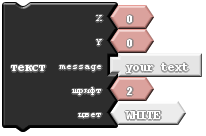 display.text(int x, int y, int font, int color, text) | Displays text in the selected color and font. x, y identify the top-left corner of the text block. Text is left-aligned and wraps automatically at the screen edge. This block cannot concatenate a numeric variable with text: display either the numeric variable (using the Join block) or text.Arguments: x, y — text start coordinates; message — text or supported numeric value; font — font (see Fonts and images); color — text color. |
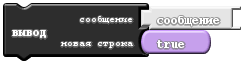 display.print(text) | Displays text in terminal mode, similar to Serial.print and Serial.println. Numeric variables can be joined with text in this block. |
Fonts and images
The display has built-in fonts available through the corresponding functions. The standard software supplied with displays in Robotrack kits includes:
| Index | Font | Character size (W × H) |
|---|---|---|
| 0 | Arial 16 pt, regular | 8 × 16 px |
| 1 | Arial 24 pt, regular | 12 × 24 px |
| 2 | Arial 32 pt, regular | 16 × 32 px |
Software update
Current display software version: 1.0.2
Download the latest version: Display firmware
Software updates may be released as the product is improved. To check the current version, connect the display to the board and power it on without connecting it in the program. The Robotrack logo and software version should appear on the screen.
To update the display software:
- Download the latest version from Display firmware.
- Disconnect the display from power.
- Copy
robotrack.tftto the root of a microSD card (card capacity does not matter). - Insert the card into the display's memory card slot (you may need to open the case), connect the display to the board, and power it on. The update progress appears on the screen.
- When the update is complete, disconnect the power and remove the memory card.